

The problem of presentation files that are too large
When clients commission me to create a new corporate presentation, they often provide existing materials as a reference. Many times these materials are completely unoptimized. In my experience, PowerPoint or PDF files often exceed 20 MB, which means they are too large for email and require alternative delivery methods such as WeTransfer, Google Drive or OneDrive.
Given that in the case of company presentations, they are often the main sales tool, I find it hard to imagine the „gymnastics” involved in sending such a presentation to a customer every time. If this is also the case in your company, it is worth changing.
Thus, a smaller presentation is not only more convenient for the Sales Team, but more importantly, it will shorten the process on the customer side. From the recipient's perspective, they will be able to simply open the attachment in the email, instead of opening another browser window, downloading the file and opening it on their computer.
In practice, presentations usually do not exceed 5 MB, which is made possible by applying several key optimization techniques.
How to reduce the size of PowerPoint presentations - proven methods
1. optimize image sizes
It is the images that have the biggest impact on file size. Fonts, a colored background or a small illustration are nothing compared to a photo that takes up an entire slide.
Therefore, only add already optimized images to your PowerPoint / Google Slides file. If an image takes up an entire 1920 px × 1080 px slide, there is no point in adding an image that is 4000 px × 4000 px and 300 dpi (i.e., print resolution).
It is worth remembering that PowerPoint gives you the ability to resize the image (crop), but does not allow you to change its resolution. As a result, adding large files to a presentation affects the weight of the file, as well as the speed of opening and editing.
2. add image files in appropriate formats
The next step in optimizing a PowerPoint presentation is to choose the right file format:
- For photos, choose files .jpg - This format will maintain good image quality with the smallest file size.
- If you need a photo with a transparent background, then add the file .png
- When adding icons, choose .svg files - they weigh almost nothing, and are razor sharp. Moreover, an icon added in the format .svg will allow you to change its color.
- Also add vector files like logos and illustrations as .svg
3. compress images in Power Point
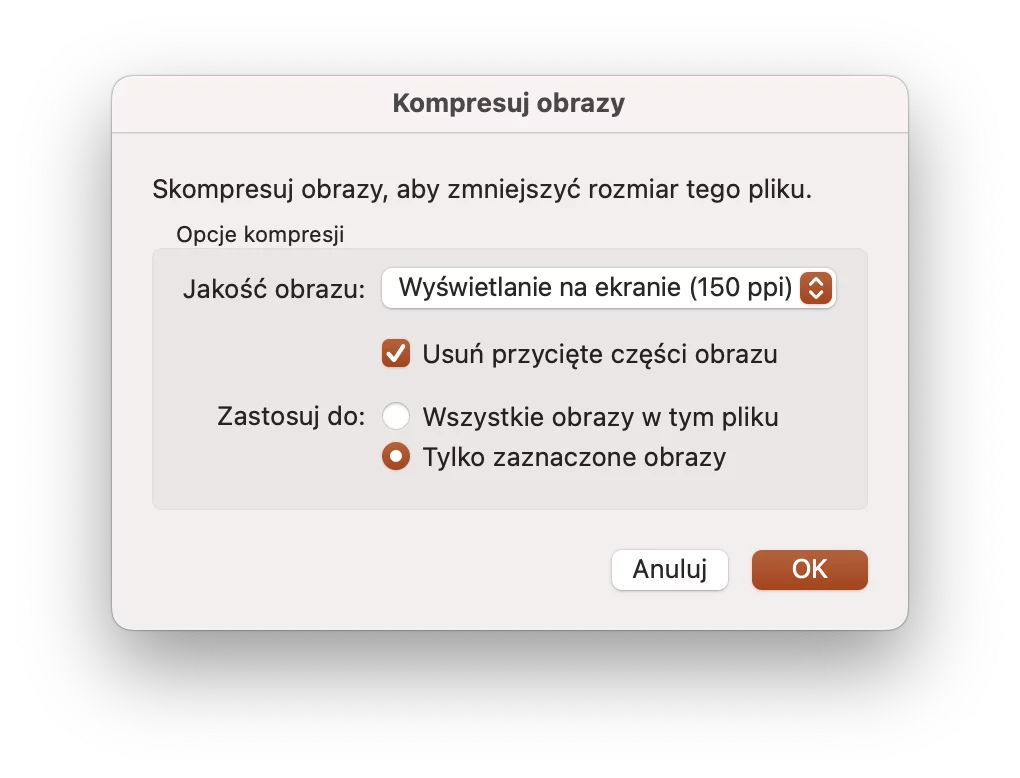
If you've added slightly too large image files before, PowerPoint rushes to help. In practice, PP offers a PowerPoint image compression tool that is capable of reducing the file by as much as 90%.
To perform compression, select:
File → Compress Images
Setting „Display on screen 150 ppi” is the best option if you are emailing files and presenting them at meetings on a projector.
It is worth remembering that after compression, some graphics may turn into white rectangles. To avoid this, select each image one by one, and choose „only selected images” in the context window. This step-by-step action will help you avoid compression errors.
4. make order in the slide pattern
Each PowerPoint presentation consists of a presentation file and a slide template - that is, the template on which it is based.
Adding multiple images in a slide template affects the final file size. Importantly, even if you do not use slides containing photos in a given presentation, the final file will be large.
In such a situation, in order to reduce the size of the PowerPoint presentation, it is a good idea to remove from the slide template those slides that are not used. To do this, go to:
View → Pattern → Slide Pattern.
Then select the slides you don't need and delete them. Finally, click the „Close pattern” button.
5. compress PDF files
Increasingly, we don't want to send the client an open PowerPoint file and export it to PDF before sending. It is worth remembering that even the best-optimized presentation can sometimes be too large (especially if it contains a lot of high-quality images).
In this situation, we can subject the file to one more compression - on the output.
You can subject the .pdf file to additional compression, such as in Adobe Acrobat. Alternatively, you can do it with this free online tool >
With the above steps, it is possible to reduce the size of the PowerPoint file without losing the quality of graphics and content. In practice, this means easier uploading, editing on different devices and a better audience experience during the presentation.
It's worth remembering that optimizing PowerPoint presentations is not just a matter of convenience - from a business perspective, it's also about professionalism and respect for the client's time.
